A WordPress update can finish successfully while leaving a contact form, checkout or mobile menu broken. The update screen tells you that files changed. It does not tell you whether your website still does its job.
A useful update process has three parts: a recovery plan, a rehearsal and a short list of checks tied to your business. Here is a workflow you can use with your developer or hosting team.
Start with a recoverable backup
Before updating, identify exactly what you can restore. A database backup contains content and settings, but it does not replace missing uploads or custom theme files. Keep a matching copy of the database and website files, and know where the restore controls are.
WordPress recommends making a backup before an update. Its backup lesson covers the database and files, along with hosting and plugin-based approaches.
A backup label is not proof that recovery works. Restore a recent copy into an isolated environment and confirm that you can sign in, open key pages and access uploaded images. Record the backup time and who can perform a restore.
For a store or membership site, also ask what happens to orders, registrations and messages received after that backup. Replacing the live database with an older copy can remove those records. Recovery needs a plan for preserving or reconciling new data.
Make staging useful and private
Staging is a separate copy of your website where you can try changes before visitors see them. Its value depends on how closely it matches production: PHP version, active plugins, theme, caching and important integrations should be comparable.
Protect staging with authentication or a network restriction. A noindex directive is an additional search instruction; it is not access control.
Before using the copy, route outgoing mail to a test mailbox or mail catcher, switch payment integrations to test mode and disable live webhooks or scheduled jobs that could contact customers. Use anonymized data where possible. A copied website can still contain working connections to real services.
Write down any differences from production. For example, a staging site without the same caching layer cannot prove that the live cache behaves correctly.
Choose the update sequence deliberately
Review the release notes for WordPress, your theme and important plugins. Pay particular attention to required WordPress and PHP versions, database migrations, removed features and integrations with other plugins.
There is no single update order that suits every dependency combination. Follow the compatibility guidance for the components involved. A plugin may need an intermediate version before a larger platform upgrade.
Apply changes in small, identifiable groups on staging. Keep a record of the previous and new versions. If a problem appears, that record gives you a useful starting point.
Avoid changing the PHP version, replacing a theme and updating every plugin in the same release unless the changes depend on each other and have been tested together. Smaller releases make failures easier to understand.
The official WordPress update guide explains the supported update methods and recovery options. For plugin-specific changes, read the version details linked from the Plugins screen.
Test what visitors actually do
Start with journeys that create value for your business. A brochure site and an online store need different checks.
For a service website, a sensible acceptance list is:
- Open the homepage, service pages and an article on a narrow screen.
- Use the navigation, search and any expandable sections with a keyboard.
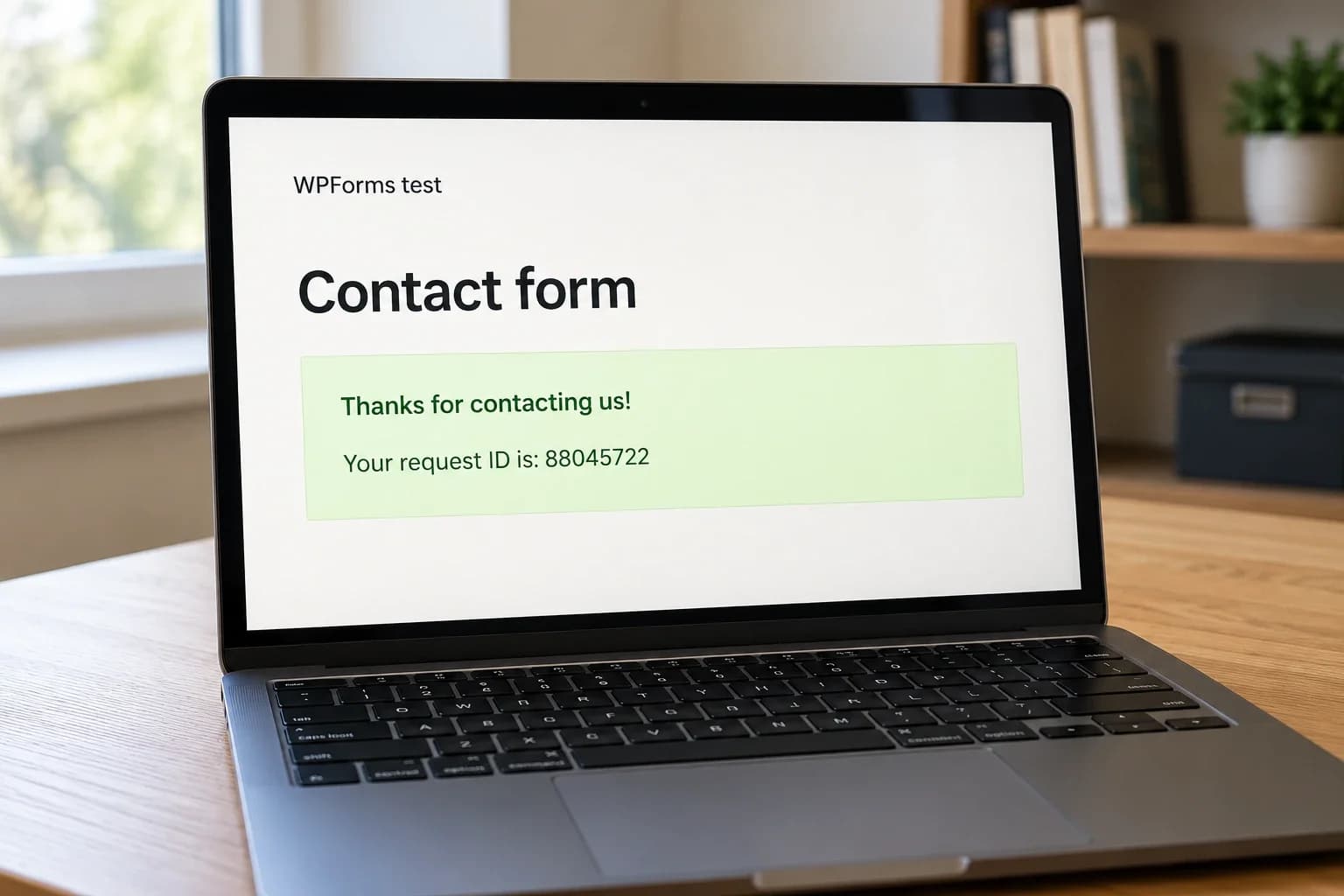
- Submit a clearly marked test inquiry and verify that it is stored and reaches the intended notification destination.
- Check required fields, invalid email addresses and the confirmation state.
- Open important landing pages while signed out, so an administrator session does not hide a caching problem.
- Confirm that images, downloads and redirects still work.
For a store, extend this with sandbox checkout, shipping and tax rules, order creation and customer emails. Check server logs for new errors. Compare key pages before and after the update, but give functional checks priority over screenshot similarity.
Release the tested changes
Choose a period when someone can observe the site and respond. Take a fresh backup immediately before release, then apply the same tested versions and sequence to production.
Do not overwrite a busy live database with a staging database simply to deploy plugin or theme changes. The live site may have collected new content or transactions while you were testing.
Clear relevant caches after the update and repeat the critical checks on the public domain. Confirm that the site is indexable, production integrations are active and temporary maintenance restrictions are removed.
If a serious failure appears, pause further changes. Decide whether a forward fix or a coordinated rollback is safer. Where an update changed the database, replacing only the plugin files may not restore a compatible state.
Make the next update easier
Keep a brief release note: versions changed, checks completed, backup reference and anything that needs follow-up. That small record reduces guesswork next time.
Automatic updates can be useful, but they still need working backups, monitoring and an owner who responds to failures. WordPress documents the controls and troubleshooting in its plugin and theme auto-update guide.
If your updates have become a task nobody wants to touch, tell me about your website. I can help establish a maintenance process around the features your business relies on.
Last updated Oct 25, 2026