You fill in your contact form, press send, and get a reassuring green message. Then you check your inbox. Nothing.
For a business website, that is a frustrating problem. Visitors think they have contacted you. You may have no idea they tried.
If your WordPress contact form is not sending emails, start with the notification settings, then check how the site sends mail, and finally follow the message through your email provider. Installing another plugin before you know where it stops can make the problem harder to trace.
Here is the order I would use.
1. Find out what “sent” actually means
A success message is feedback from the form. It is not a delivery receipt from your inbox, and it does not necessarily mean the submission was saved.
Even WordPress returning a successful result from its mail function does not prove that the recipient received anything. The official wp_mail documentation (opens in a new tab) makes that distinction clear.
Think of the journey as separate steps:
- The visitor submits the form.
- The form decides whether to send a notification.
- WordPress hands the email to its configured mail service.
- That service attempts delivery.
- The receiving mailbox decides where to put it.
Your job is to find the first step you cannot confirm.
Start with one test submission using a recognisable subject, such as “Website form test — 7 November, 10:30”. Note the time and recipient address. That gives you something specific to look for instead of searching through a week's worth of messages.
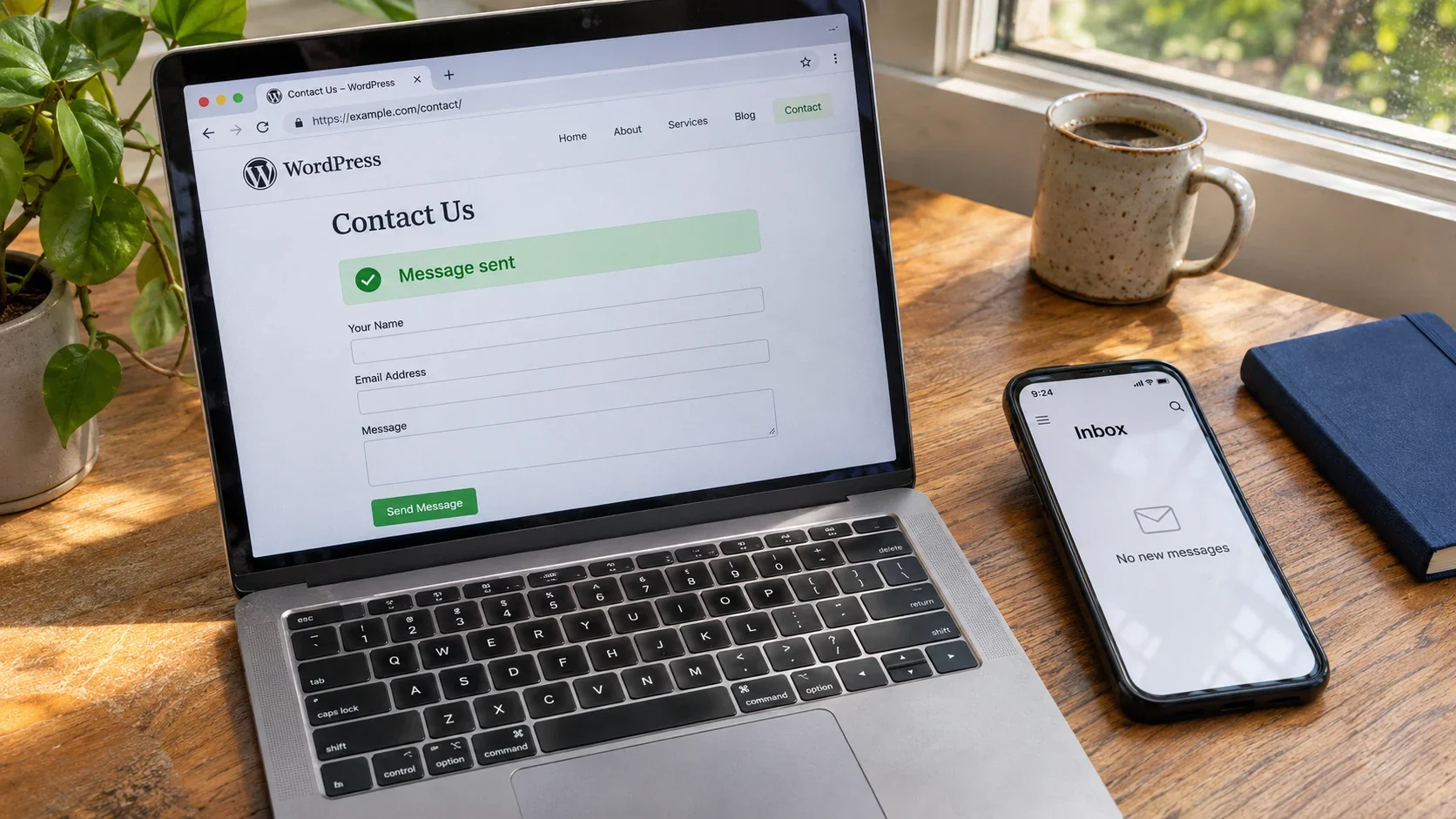
A form confirmation and an inbox tell you different things. This illustrative scene shows why both need checking.
2. Check the notification before touching SMTP
Open the settings for the form that appears on the live page. Check:
- Is the email notification enabled?
- Is the recipient address correct?
- Does a condition prevent it from sending for your test answers?
- Was the form copied from another website with an old address still attached?
A thank-you message and an email notification are different settings. One can work while the other is disabled.
In WPForms, look under Settings → Notifications. Pay attention to fields that use the site's admin email rather than a fixed address. WPForms' notification guide (opens in a new tab) explains the recipient settings and conditional notifications.
If your plugin stores entries, check whether the test appears there. Entry storage depends on the plugin, licence and configuration, so do not assume it exists.
An entry without a notification gives you a useful starting point. No entry needs more investigation; it does not automatically prove that email delivery is the problem.
3. Use your own address in From, and the visitor in Reply-To
It feels natural to make a contact email come “from” the person filling in the form. But your website is not authorised to send as every visitor's Gmail, Yahoo or company address.
A clearer setup is:
- From: Website enquiries <website@example.com>
- To: hello@example.com
- Reply-To: the visitor's email field
These are placeholder addresses. Use a sender on a domain you control and have authorised with your mail provider.
The From address identifies your website as the sender. Reply-To lets you press Reply and respond to the person who contacted you. WPForms documents this arrangement (opens in a new tab).
Also check whether your mail integration forces a particular From address. If it does, that setting may override the one in the form builder. The address you see in the builder may not be the address used for sending.
4. Give WordPress a working way to send email
WordPress is not an email server. Its default mail setup depends on the server's mail environment unless a plugin or host provides another route. A new VPS, for example, can serve a website perfectly while having no working outbound mail setup. WordPress explains these server requirements (opens in a new tab).
Your site needs a configured route through your host or a transactional email service, using SMTP or the provider's API. An SMTP plugin is one way to connect that service; installing it is only the start.
Check the connection type, account credentials, authorised sender and any account limits. Avoid having several plugins compete to configure WordPress mail.
One detail worth checking with Brevo: an SMTP connection needs an SMTP key, not an API key. An API integration uses the API credentials it asks for. Follow Brevo's SMTP setup instructions (opens in a new tab) for the connection details.
Run the integration's test email. If it fails, keep the exact error. Do not disable encryption to make the warning disappear. Ask your host whether outbound connections to the provider are allowed if the error points to a connection timeout.
5. Read the delivery log
This is where the investigation becomes much less vague.
Send another clearly labelled test, then look for its recipient and timestamp in the provider's transactional email logs. First check that you are viewing the correct account, date range and filters.
No matching event? Investigate the WordPress-to-provider connection. The notification may not have triggered, the site may be using another sending route, or a queued task may not have run. An empty log alone does not tell you which.
A bounce, rejection or deferred message? Read the reason attached to that event. A nonexistent address needs a different fix from a temporarily full mailbox. Brevo's reports explain these event types (opens in a new tab).
Marked delivered, but missing from the inbox? Check spam, mailbox rules and any company quarantine. “Delivered” is not the same as “visible in the inbox” or “read”. Postmark explains that its delivered status means the receiving mail server accepted the message (opens in a new tab).
Keep the message ID when asking for help. It is much more useful than “email is broken”. Remove passwords, keys and private message content from anything you share.
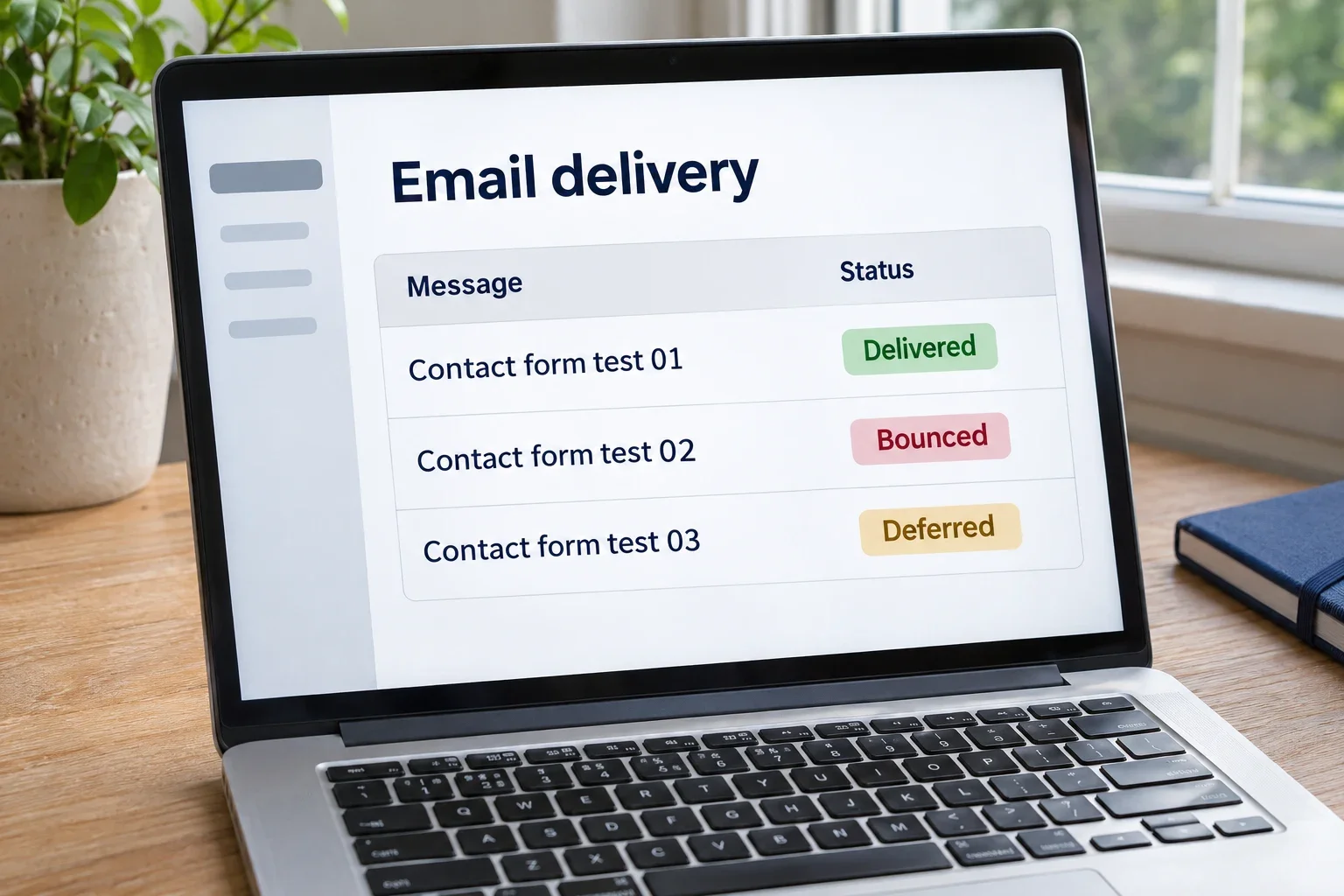
Illustrative log, not a real account: follow the status of your own test message to decide what to check next.
6. Check domain authentication carefully
Email authentication helps receiving services check whether a message is allowed to use the identity it claims.
The three names you will usually see are:
- SPF: identifies servers allowed to send for the envelope sender's domain.
- DKIM: adds a signature that the receiving server can verify.
- DMARC: checks whether a passing SPF or DKIM identity aligns with the visible From domain, and publishes a policy for failures.
Use the exact records supplied for your account. Do not copy somebody else's DNS values from a tutorial. For Brevo, start with its domain authentication instructions (opens in a new tab).
If your provider requires an SPF change, check the existing record first. A domain or subdomain should have one SPF record, with its authorised senders accounted for. Adding a second SPF record can cause an authentication error, as Microsoft's SPF documentation explains (opens in a new tab).
Keep a copy of the current DNS settings before changing them. Preserve the services your business already uses, including any existing DMARC policy. Setting up outbound form notifications normally does not require moving your incoming mail or replacing its MX records.
7. Test the real form, then keep a fallback
A successful SMTP test is useful, but it does not test the form's notification rules.
Open the live contact page in a private browser window and submit it as a visitor would. Use harmless test details. Check the whole journey:
- The form accepts the submission and displays the right confirmation.
- The entry is saved, if storage is enabled.
- The notification appears in the sending provider's logs.
- It arrives in the intended mailbox; check spam too.
- Pressing Reply addresses the visitor's email correctly.
For a business-critical form, repeat the test with another mailbox you control on a different email provider.
If your form supports entry storage, consider enabling it so an email problem does not leave you without another record. Restrict access, collect only what you need, and choose a sensible retention period. Storing every message forever creates a different problem.
Keep an alternative contact method on the page as well. And repeat the test after a hosting move, mail configuration change or major update. My guide to updating WordPress safely includes the wider checks worth doing around site changes.
A few common questions
Will an SMTP plugin fix every missing contact email?
No. It can provide a working sending route, but it cannot correct a wrong recipient address or a notification that never triggers. Configure it, inspect its test result, and then submit the actual form.
Why does the test email work while the contact form does not?
The connection to the mail service may be fine while the form uses different settings. Check its recipient, notification conditions and From address, then look for a corresponding log entry. Check any delayed notification queue too.
Can I recover enquiries that never reached my inbox?
Possibly, if your form saved entries or another system retained the submission. Check those records first. A delivery log may contain only metadata, not the message itself. If the submission was never stored anywhere, there may be nothing to recover.
Make the form part of regular website care
It is easy to notice a broken page. A missing email is quieter.
My recommendation is simple: test the form on a schedule that fits your business, keep a recoverable copy where appropriate, and make sure somebody knows where to check delivery failures.
If your form says everything is fine but enquiries keep disappearing, I can help investigate the problem. For ongoing checks, updates and support, take a look at my WordPress website maintenance service.
Images are AI-generated editorial illustrations. Interface layouts are illustrative, not screenshots of a live website or email account.
Last updated Nov 7, 2026